
Download GNS3 – Free Network Emulator, Real‑Time Simulation & Design Tool
Overview – What Is GNS3 and Why It Matters
GNS3 (Graphical Network Simulator‑3) is an open‑source network emulation platform that lets you design, build, and test complex network topologies without touching physical hardware. Created by Jeremy Grossmann, Dominik Ziajka, and Piotr Pękala, and now maintained by Galaxy Technologies together with a vibrant community, GNS3 has become the go‑to sandbox for network engineers, educators, and certification candidates worldwide. The software combines virtual devices—such as Cisco IOS images, Juniper JunOS, and many other vendor‑specific operating systems—with real‑world appliances, enabling a truly hybrid environment that mirrors production networks down to packet‑level behavior. Because it runs locally on your workstation, you can experiment with routing protocols, firewall policies, and QoS settings in a risk‑free setting, making it ideal for pre‑deployment testing, lab exercises, or simply sharpening your networking skills.
One of the biggest strengths of GNS3 is its flexibility. Whether you are a newcomer who needs a visual drag‑and‑drop interface or an experienced architect who prefers command‑line control, the platform adapts to both styles. Its extensive documentation, active forums, and a library of pre‑built appliances help reduce the learning curve, while the ability to integrate with popular virtualization technologies (VirtualBox, VMware Workstation, VMware Fusion, VMware ESXi, and Microsoft Hyper‑V) ensures that you can scale from a handful of devices to hundreds in a single topology. Moreover, GNS3 does not require a constant internet connection to verify licenses, which means you can work offline on secure networks or remote sites without any hassle.
While the core application is free, the true power of GNS3 emerges when you combine it with appropriate virtual machines and IOS images—some of which may carry licensing costs depending on the vendor. Nevertheless, the overall cost of ownership remains low compared with commercial network simulators, making GNS3 a cost‑effective solution for startups, educational institutions, and large enterprises alike. In short, if you need a robust, customizable, and community‑driven tool to emulate real‑world networking environments, GNS3 deserves a top spot on your software toolkit.
Key Features That Set GNS3 Apart
- Hybrid Emulation: Seamlessly blend virtual devices with physical hardware for realistic testing.
- Multi‑Vendor Support: Over 20 vendors, including Cisco, Juniper, Arista, Huawei, and more.
- Scalable Topologies: Build networks ranging from a single router to hundreds of interconnected devices.
- Integration with Major Hypervisors: Works with VirtualBox, VMware Workstation/Fusion, VMware ESXi, and Microsoft Hyper‑V.
- Real‑Time Packet Capture: Built‑in Wireshark integration for deep packet analysis.
- Dynamic Drag‑and‑Drop Interface: Intuitive GUI for rapid topology design.
- Automation Ready: Supports Python scripts, REST API, and external automation tools like Ansible.
- Offline Licensing: No need for an internet connection to verify usage after initial activation.
- Extensive Community Resources: Tutorials, forums, and pre‑built labs shared by thousands of users.
- Cross‑Platform Compatibility: Available for Windows, macOS, and Linux distributions.
Installation & Usage Guide – Getting GNS3 Up and Running
Step 1: System Requirements & Compatibility
GNS3 runs natively on Windows 10/11 (64‑bit), macOS 10.15+ (Catalina or later), and most modern Linux distributions (Ubuntu, Debian, Fedora, etc.). Minimum hardware recommendations include a dual‑core CPU, 8 GB RAM (16 GB or more for large labs), and at least 20 GB of free disk space for VM images and project files. For optimal performance, especially when emulating IOS images, a solid‑state drive (SSD) and a dedicated graphics adapter are highly recommended.
Step 2: Download and Install the Core Application
- Visit the official GNS3 website and click the “Download” button for your operating system.
- Run the installer and follow the wizard prompts—accept the license agreement, choose the default installation path, and let the installer add GNS3 to your system PATH.
- During installation, you’ll be prompted to install the GNS3 VM. Choose “Yes” and download the OVA/OVF file for the VM, which will later be imported into your preferred hypervisor.
- After the core application is installed, launch GNS3 for the first time. The initial setup wizard will guide you through basic configuration, including selecting your preferred hypervisor (VirtualBox, VMware, etc.).
Step 3: Import the GNS3 VM and Link It to the Application
Open your hypervisor (e.g., VirtualBox), import the GNS3 VM OVA file, and configure the VM to use at least 4 GB RAM and 2 CPU cores. Ensure that the VM’s network adapter is set to “Host‑only” or “Bridged” mode, depending on whether you need external connectivity. Once the VM boots, return to the GNS3 desktop, go to Preferences → GNS3 VM**,** and enable “Enable the GNS3 VM.” Select the appropriate hypervisor, confirm the VM name, and click “Test Settings” to verify communication. A successful test will display a green checkmark.
Step 4: Adding Device Images and Building Your First Topology
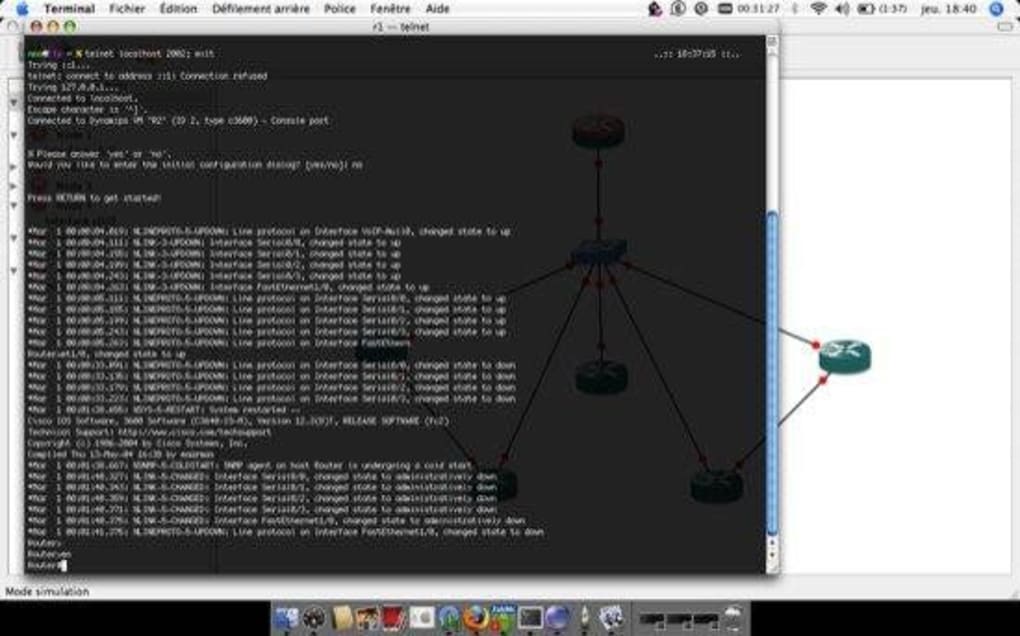
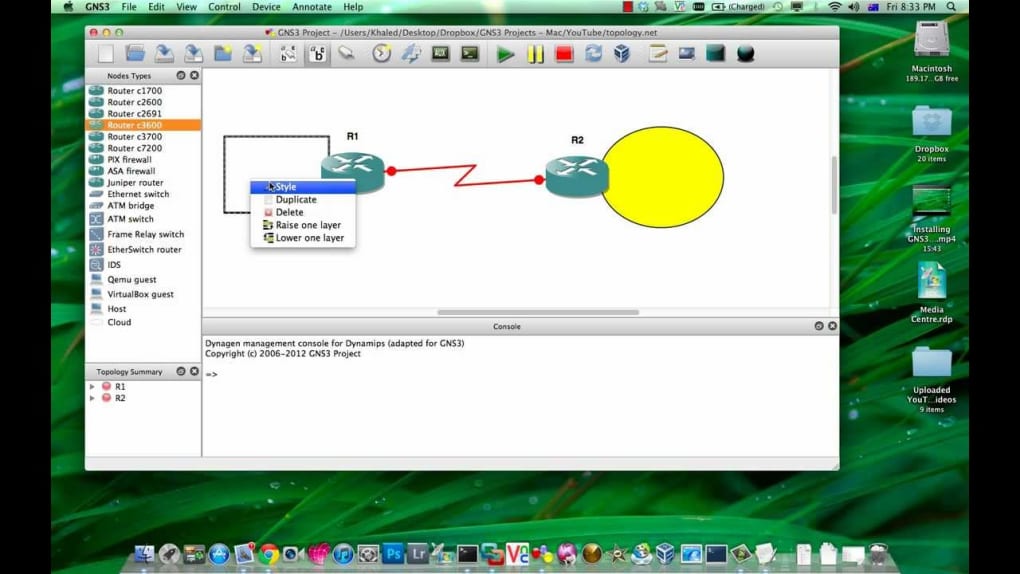
With the VM linked, you can now add IOS, JunOS, or any other vendor images. Navigate to File → Import Appliance**,** browse the online GNS3 Marketplace, and select an appliance that matches your learning goals (e.g., Cisco 7200 router). The wizard will download the required image files (or prompt you to supply legally obtained copies) and automatically configure the appliance for use. Drag the newly added device onto the canvas, connect interfaces using the intuitive link tool, and start the device. The console window will appear, allowing you to configure the device just as you would on real hardware.
For more advanced labs, you can integrate real‑world devices via Ethernet cables, use Docker containers for lightweight services (like DNS or DHCP), or employ the built‑in packet capture feature to troubleshoot traffic flows. GNS3 also supports snapshots, enabling you to save the exact state of a device and roll back later—an essential feature for exam preparation and iterative testing.
Pros and Cons – A Balanced Look at GNS3
Pros
- Completely free and open‑source, reducing total cost of ownership.
- Supports a vast array of vendor images, giving realistic network behavior.
- Highly scalable – you can run hundreds of devices in a single project.
- Rich integration with popular virtualization platforms and Docker.
- Extensive community support, tutorials, and pre‑built labs.
- Offline licensing and no mandatory internet connection for daily use.
- Powerful automation capabilities via API and scripting.
- Cross‑platform availability (Windows, macOS, Linux).
Cons
- Initial setup can be complex, requiring multiple components (VM, hypervisor, IOS images).
- Performance heavily depends on host hardware and proper VM configuration.
- Legal considerations for proprietary IOS images – users must provide their own licensed copies.
- Learning curve for advanced features (e.g., REST API, Docker integration) may be steep for beginners.
- Occasional bugs in newer releases may require waiting for community patches.
Frequently Asked Questions
Is GNS3 really free, or are there hidden costs?
GNS3 is an open‑source project and the core application is completely free. However, to emulate vendor devices you need legally licensed IOS or JunOS images, which may require separate purchase from the vendor. The virtualization software (VirtualBox) is free, while VMware Workstation and Fusion are commercial products, though free trial versions are available.
Can I run GNS3 on a laptop, or do I need a dedicated server?
You can run GNS3 on a modern laptop, especially for small to medium labs. For large topologies with hundreds of devices, a workstation or a dedicated server with more CPU cores, RAM, and SSD storage will provide smoother performance.
Does GNS3 support cloud platforms like AWS or Azure?
While GNS3 itself does not directly provision cloud resources, you can integrate cloud‑based virtual machines via VPN or secure tunnels, allowing you to simulate hybrid environments that combine on‑premise and cloud devices.
How do I capture traffic for analysis in GNS3?
GNS3 includes built‑in Wireshark integration. Right‑click a link between two devices and select “Start Capture.” Wireshark will launch, displaying live packet data for detailed troubleshooting.
Is there a way to automate lab deployments in GNS3?
Yes. GNS3 provides a REST API that can be accessed via Python, PowerShell, or any HTTP client. You can script topology creation, device configuration, and even start/stop operations, making it ideal for CI/CD pipelines and automated testing.
Conclusion & Call to Action
GNS3 stands out as a powerful, free network emulator that bridges the gap between theoretical learning and real‑world practice. Its hybrid approach—mixing virtual devices with physical hardware—delivers a level of realism that few competitors can match without a hefty price tag. While the initial setup may appear daunting due to the need for multiple components, the payoff is a highly customizable environment capable of scaling from simple lab exercises to enterprise‑grade simulations. Whether you’re preparing for a Cisco CCNA/CCNP, exploring multi‑vendor interoperability, or simply testing a new routing protocol before deployment, GNS3 provides the tools, community support, and flexibility to get the job done.
Ready to start building your own virtual network? Download GNS3 today, follow the quick‑start guide, and join thousands of engineers who trust this emulator for daily lab work and exam preparation. Remember, the best way to master networking is by doing—so fire up GNS3, design a topology, and watch your skills grow in a safe, risk‑free environment.
GNS3 delivers an unmatched free experience for network simulation, offering deep vendor support, scalability, and a strong community. Its main drawback is the multi‑step installation, but once configured, it becomes a versatile sandbox for any networking professional.
- Pros: Free, multi‑vendor, scalable, offline license, API support.
- Cons: Complex setup, requires licensed IOS images, performance depends on host.







